Send us details, lots of details, as many details as possible.
- How can we reproduce the issue?
- What were you doing when it happened?
- What page were you on?
- What user were you talking with?
- What are you trying to do and what is happening instead?
- What device are you on? Laptop, iPad, Android phone etc.
- What browser are you using? What version of browser? For example: Google Chrome Version 81.0.4044.138 (Official Build) (64-bit)
- What version of the site are you using? Mobile, desktop, app etc.
Why so much detail?
It helps us focus in the right direction by a process of selection and elimination. For example, this one time a user kept getting logged out for no apparent reason and we were able to narrow it down to be only happening on an iPad with iOS 13.4 using iOS Safari. Once that was figured out and we were able to reproduce the issue on our end, the fix only took a couple of hours.
The details help in narrowing down possible causes and speeds up the processes of releasing a fix.
Screenshot maybe?
You know what's better than telling us what's happening? Showing us what's happening. Screenshots help a lot.
Here's are some shortcuts you can use to take screenshots:
Android Phones
Power + Volume Down
Press the Power and Volume Down buttons simultaneously to capture your mobile's screen
iOS (iPhones and iPads)
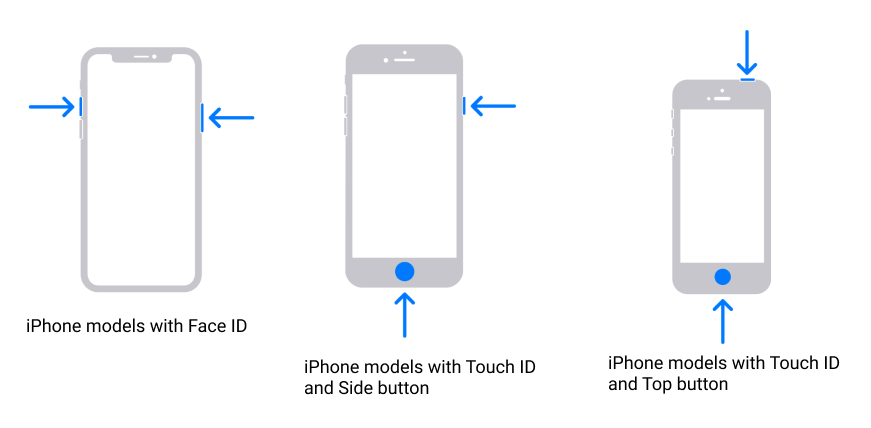
Take a screenshot on your iPhone
Home + Power / Power + Volume Up
Press the Home and Power (or the Power and Volume Up) buttons simultaneously to capture visible screen
macOS
shift + command + 3
Press the Shift, Command and 3 buttons to capture the entire screen
shift + command + 4
Press the Shift, Command and 4 buttons to select and capture part of the screen
Windows
Windows key + Print Screen
To capture your entire screen and automatically save the screenshot, tap the Windows key + Print Screen key. Your screen will briefly go dim to indicate that you've just taken a screenshot, and the screenshot will be saved to the Pictures > Screenshots folder.
Windows key + shift-S
You can also use keyboard shortcut Windows key + shift-S (or the new Screen snip button in the Action Center) to capture a screenshot with Snip & Sketch. Your screen will dim and you'll see Snip & Sketch's small menu at the top of your screen that will let you choose with type of screenshot you want to capture.
Alt + Print Screen
To take a quick screenshot of the active window, use the keyboard shortcut Alt + PrtScn. This will snap your currently active window and copy the screenshot to the clipboard. You'll need to open the shot in an image editor to save it.
Screen recording?
Yep, that is an option too. Here's a helpful article by Apple Support on how to record your screen on iOS devices
How to record the screen on your iPhone, iPad, or iPod touch
Caution on creating multiple tickets on the same issue
Surely creating 10 more tickets about the same issue will get it more attention, right? Wrong.
Please note that creating more tickets about the same problem does not help in solving it quicker, it just keeps creating new tickets that move the earlier ones with more details out of sight. Contrary to popular belief, creating more tickets actually slows down the response time.. It's better to update an existing ticket instead of creating a new one if it's about the same issue.
If you want an update, please respond to the ticket that is already open.
Comments
0 comments
Please sign in to leave a comment.